Add a note to an assessment
Learn how to add a note to an assessment to capture context and share information with your team.
Prerequisites
You must have Edit access to the assessment to add a note. Learn more about user management and permissions.
Use assessment-level notes to record observations and decisions for a specific assessment on an entity. To add a note at the entity level, see Add a note to an entity.
To add a note to an assessment:
On the assessment page, select the button.

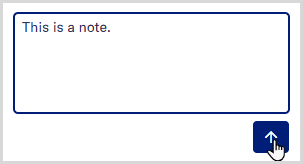
Type your text in the Add a note box.
Select the button.
Your note appears at the top of the assessment's notes panel, showing your username and the date and time it was added. The note is also recorded as an action on the assessment in the audit report.
Select to hide the notes panel and return to the main view.