Add an assessment
Learn how to add an assessment to an entity to start an assessment workflow and begin collecting and reviewing data.
Use assessments to evaluate an entity using one of your organization's predefined assessment templates. When you add an assessment, the platform starts the assessment workflow and begins collecting and reviewing data for that entity.
To add an assessment:
In the Portfolio view, select the entity name to open the entity page.
Select .
Where you see Add assessment depends on how the entity page is displayed:
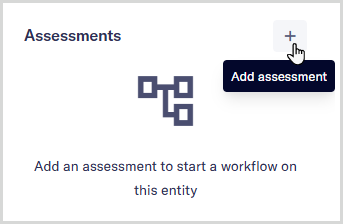
In Full page mode, Add assessment appears in the Assessments panel on the entity page:
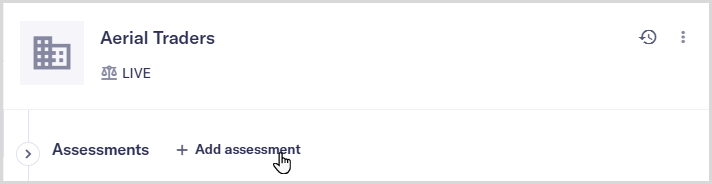
In Side preview mode, if no assessments have been started, Add assessment appears below the entity title bar:
If one or more assessments already exist, select to switch to Full page mode. You can then add more assessments.
Learn more about view modes.
From the list, select the assessment template you want to use.
The assessment workflow starts running as soon as you add the assessment. To understand what happens next, see About the assessment lifecycle.