Assign a task
Learn how to assign a task to a specific user or team to let them know they should take action on it.
Assign tasks to a specific user or team to notify them to take action.
You can assign or change a task's assignment in two places:
From the Tasks view, using the Assigned to column.
From the task page, after opening the task.
Assign a task from the Tasks view
To assign or reassign a task from the Tasks view:
Open the Tasks view.
Locate the task.

In the Assigned to column, select or the current assignee.
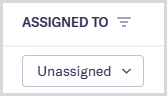
Select a user or team from the list, or type a name to search.
Optionally, add a message in the Add a comment box. The user or team members can see this message, and it is recorded in the entity's audit report.
Select .
The user or team members assigned to the task receive notification of the assignment by email.
Assign a task from the task page
To assign or reassign a task from the task page:
Open the Tasks view.
Select the task name to open the task page.

Select or the current assignee.
Select a user or team from the list, or type a name to search.
Optionally, add a message in the Add a comment box. The user or team members can see this message, and it is recorded in the entity's audit report.
Select .
The user or team members assigned to the task receive notification of the assignment by email.
Unassign a task
To remove a task's assignment:
Locate the task in the Tasks view, or open the task page by selecting its name.
Select and choose .
Optionally, write a message in the Add a comment box. This message is recorded in the entity's audit report.
Select .
The task is unassigned from the previously selected user or team.