Filter a view
Abstract
Learn how to use filtering to change the data displayed on the Views page.
Filtering allows you to control which data appears in a view.
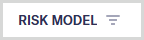
Columns in your view that have a filter applied display a filter icon next to the column name. For example:
To change the current filtering:
On the Views page, select the button.
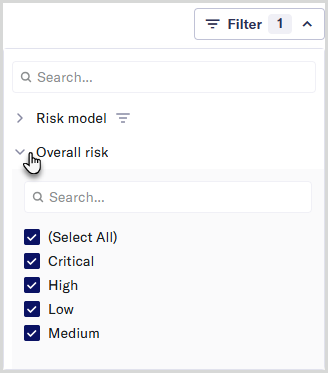
Select a column name to view and edit its filter options.
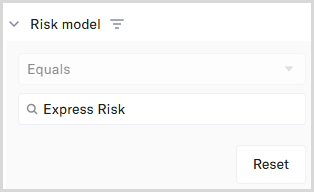
To clear an existing text-based filter, select :
Your selected filter settings appear immediately and remain active until you leave the view.