Review screening results
Learn how to review screening case reports, confirm matches, and mark false positives to complete a screening task.
A screening task is created only when you need to take action or make a decision. This happens if the initial screening inquiry finds unresolved matches, or if ongoing monitoring later adds or updates matches.
To review screening results:
From the Tasks view, select the review screening results task.
You’ll see the inquiry summary and a list of unresolved screening matches. Matches are sorted by confidence score from highest to lowest.
To complete the task and continue the assessment, review each unresolved match and decide whether it's a confirmed match or a false positive.
Select the name of an unresolved match to open its case report, which includes biographic details, screening events, and data sources.
From the case report, you can:
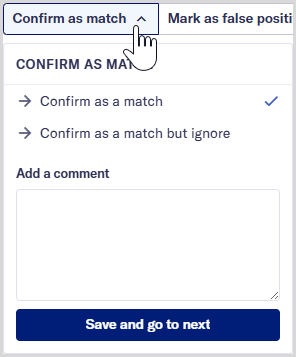
Confirm a match: Open the drop‑down and choose either or . Your choice controls whether the match is included or ignored in the assessment’s overall risk score.
Mark a match as a false positive: Open the drop-down and choose the reason that explains why you marked the potential match as a false positive.
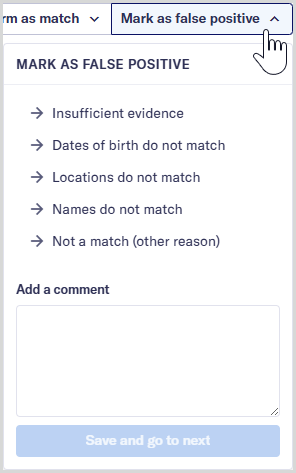
You can include an optional comment explaining your decision.
Select to load the case report of the next unresolved match in the list. When you resolve the final unresolved match, you are taken back to the list of screening matches.
In the list of screening matches, confirmed matches appear in the Screening matches tab under Confirmed. False matches appear on the False positives tab.
To move a confirmed match or a false positive back to the Unresolved list, select the match name to open the case report and choose .