Configure risk models
Learn how to configure a risk model by adding risk factors and groups, defining scoring rules, and creating risk levels, with an end-to-end example that shows how everything fits together.
You control how an entity's risk is assessed by configuring the risk factors, scoring rules, and risk levels used during an assessment. This setup is called a risk model.
To configure a risk model:
Select from the Configuration menu.
Select .
Give the risk model a name. You can also add a short description to explain its purpose.
In the Risk factors tab, enter the custom JavaScript (JS) code for all risk factors, including the names, descriptions, and scoring rules for each risk factor, as well as the overall risk model scoring rule.
You can also organize risk factors into groups. This helps structure the model into clear risk segments, each with its own scoring rule. Define groups directly in your JS code in the Configure risk factors field.
The simple example later in this topic shows you how to define risk factors, groups, and scoring rules. However, because the model is defined in JavaScript, you can build complex or simple scoring models using your own formulas, weightings, and grouping strategies.
On the Risk levels tab, you'll see three default risk levels: Low risk, Medium risk, and High risk. You can change the name, color, and lower limit of these default risk levels by selecting .
To add a new risk level, select . Enter a name and select a color for the risk level tag that's shown next to the risk score.
Enter a lower limit for this risk level and select . Continue adding as many risk levels as you need.
Note
The upper limit of the score range is calculated automatically, so there are no gaps. For example, if you have a risk level Low with range 0 to 49 and you now add a risk level Medium with lower limit 60, the platform automatically increases the upper limit of the Low range from 49 to 59 to cover the gap.
Similarly, if you delete a risk level, the higher limit of the risk level below is automatically increased to the cover the range of the deleted level. If you delete the lowest level, the level above adjusts to cover the range of the deleted level.
Select to save the risk model.
Example risk model
This section walks you through a simple example of a risk model, including the JS code, risk levels, and what the output could look like for a sample company.
Risk factors
The following example scores risk based on two factors about the subject company: country of incorporation and legal status. It reads entity data from the canonical input.start.content.firmographics path, scores each factor using a simple rule table, and groups them under "Subject company." The highest of those scores is then used as the overall risk score. Each factor includes a description explaining what it assesses and a source attributing where the data came from.
import {
  RiskFactor, RiskScore, RiskValue,
  RiskFactorGroup, RiskModelOutput, Source,
} from "v1";

const HIGH_RISK_COUNTRIES = ["AF", "IR", "KP", "SY"];

export function calculate_risk(input) {
  let firmographics = input?.start?.content?.firmographics;

  // Country of incorporation
  let countryCode = firmographics?.country?.[0]?.countryCode;
  let countryScore = HIGH_RISK_COUNTRIES.includes(countryCode) ? 100 : 10;
  let countryFactor = new RiskFactor(
    "Country of incorporation",
    "The country in which the company was incorporated.",
    new Source("Registry", firmographics?.country?.[0]?.lastCheckedDate),
    RiskScore.calculated(countryScore, RiskValue.country(countryCode)),
  );

  // Legal status
  let status = firmographics?.statuses?.status?.[0]?.value;
  let statusScore = status === "Active" ? 0 : 50;
  let statusFactor = new RiskFactor(
    "Legal status",
    "Risk based on the company's legal status.",
    null,
    status
      ? RiskScore.calculated(statusScore, RiskValue.string(status))
      : RiskScore.default(30),
  );

  // Group and return
  let factors = [countryFactor, statusFactor].map(f => RiskFactorGroup.single(f));
  let score = Math.max(countryScore, statusScore);

  return new RiskModelOutput(score, "Highest risk factor score", [
    RiskFactorGroup.group("Subject company", score, "Max of child factors", factors),
  ]);
}
Risk levels
You configure risk levels separately from the JS code. This example uses the following labels and ranges:
Low: 0 to 35
Medium: 36 to 49
High: 50 to 99
Extreme: 100 or more
The platform applies these levels to the scores returned by the JS code to produce the final risk level.
Example output
Let's imagine you run an assessment on an active company incorporated in the UK called Aerial Traders, then this example risk model would produce an output like this:
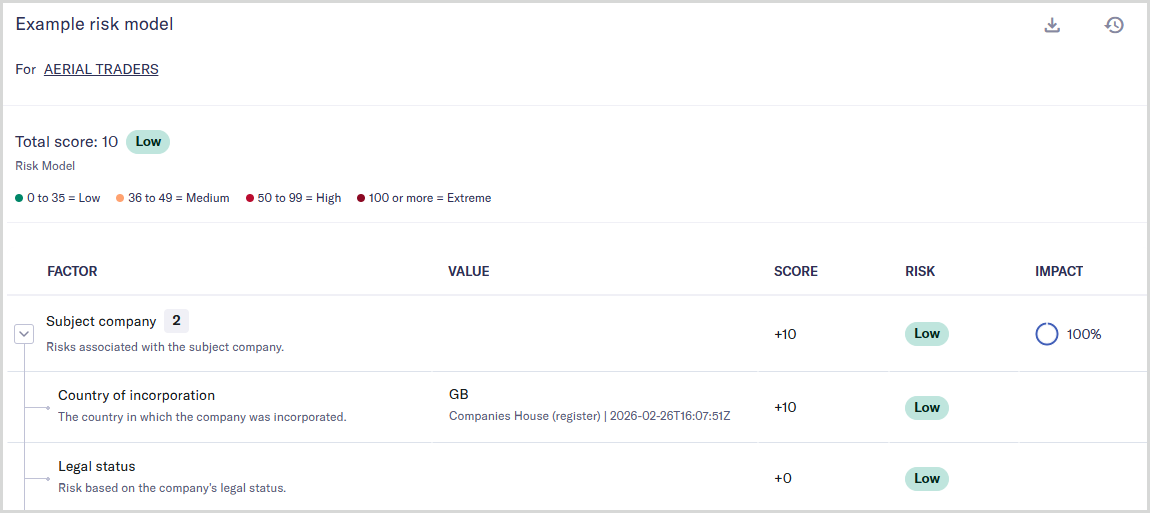
The overall score is 10, which is the highest score of all risk factors in the group and therefore the highest score overall. This score maps to the Low risk level.