Work with view columns
Abstract
Learn how to choose and reorder columns for each view on the Views page.
Columns define what information about each item in a view is visible, allowing you to choose which attributes matter for your work and arrange them to create a meaningful lens on your portfolio.
The Columns button shows a count of the number of columns included in your view:
To alter the columns displayed in your view:
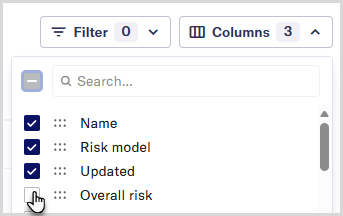
On the Views page, select the button.
Check the box next to the column name to include a column in the view.
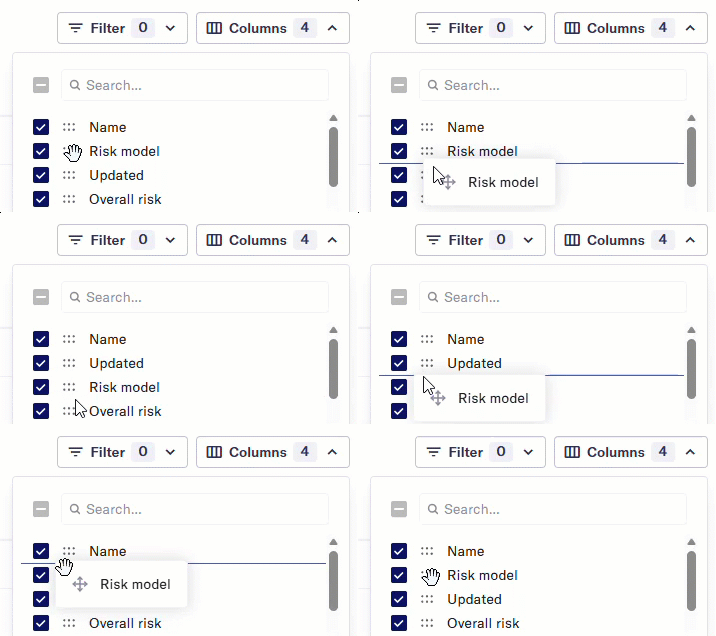
Reorder columns by dragging and dropping them in your desired order.
Your column changes appear immediately and remain until you leave the view.