Import multiple entities to your portfolio via CSV
This topic explains how to import company and individual entities to your portfolio in bulk using CSV files.
If you need to add lots of entities at once, you can import them into your portfolio using a CSV file. This lets you add multiple companies or individuals in a single upload instead of adding entities manually one by one.
To import multiple entities to your portfolio using a CSV file:
Select the import icon in the search field of the header bar and select .
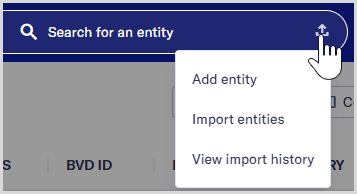
Select an entity type: or . Your selection determines the file template generated.
Download the Company template file if you are importing company entities or the Individual template if you are importing individual entities. The templates include column headers for entity data fields.
Complete the CSV template file with the data you wish to include for each entity; one entity per row.
You can prepare your own CSV file to import entities but it has to include the required columns. For importing companies, your CSV file needs to include the column Company name. For importing individuals, your CSV file needs to include the columns First name and Last name.
Use the option to upload the CSV file from your device, or drag and drop the file into the area, and select to continue.
Column headers in your CSV file should map to fields used in the platform automatically.
If necessary, manually map column headers in your CSV file that do not match names of required fields used in the platform. Optional fields do not need to be mapped, but you need to acknowledge that unmapped columns in your file won't be imported.
Select to continue.
Review the summary of your import. You can fix the highlighted errors and upload the CSV file again, or continue with the import without those fields.
Select to start the import. You are redirected to the Import history table where you can see the status of your import.