Add an entity manually to your portfolio
Learn how to add an entity to your portfolio when it does not appear in search results. Follow the steps to add a single entity manually through the platform, review the details, and save the entity to your portfolio.
If an entity doesn't appear in search results, you can manually add it to your portfolio. You can add one entity at a time through the platform, or import multiple entities from a CSV file.
To add an entity manually to your portfolio:
From the search bar, select the Upload icon, then choose .

You can also open the entity addition page from the search results by selecting .
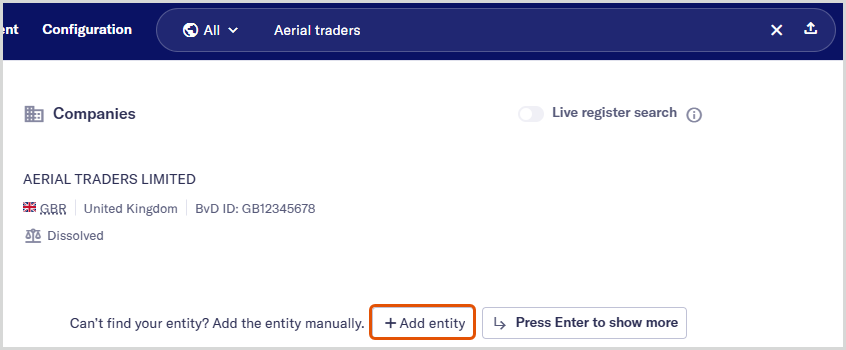
On the Select entity type page, choose whether to add a or an , then select .
On the Basic information page, enter the required details for your selected entity type. Select .
Choose whether to add optional details. Select the checkboxes for the optional sections you want to complete. To include all optional sections, select . Select .
Each optional section appears as a separate step. Fields are optional, so fill in what you have and select to move on.
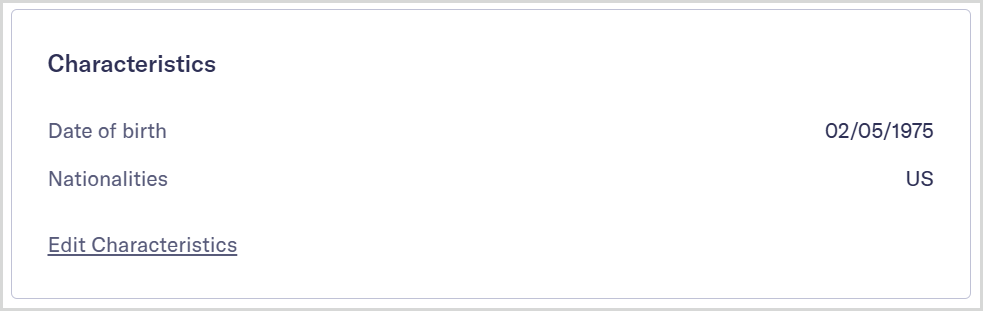
Review the information you entered on the Review page. Each completed step is shown as a separate card.
To make changes, select the link to return to the selected section and edit the information.
Select to save the entity and add it to your portfolio.
If you select at any point, the entity is not added to your portfolio, and the information you entered is not saved.