Search for an entity
Learn how to search for entities in platform using names or identifiers. You can filter results by country and register, sort and refine results, and open entity details to review data and add or remove entities from your portfolio.
Use the search bar to find entities in your portfolio, Moody's curated data, and international business registers.
Search for an entity
To search for an entity in platform:
Enter at least three characters of an entity name or supported identifier in the search bar.
Supported identifiers include VAT, EU VAT, LEI, BvD ID, Orbis ID, Cortera Link, and national number.
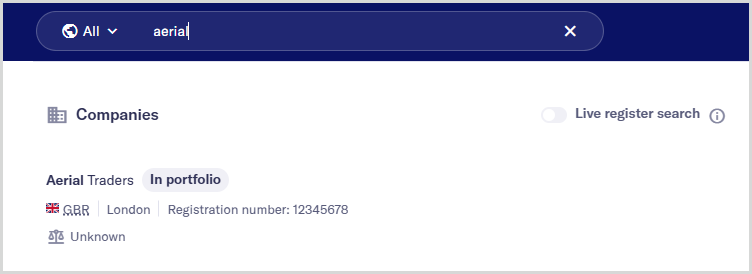
As you type, the search results update automatically and show up to five of the closest matches. When available, each result includes high‑level details such as industry, legal status, employee count, and headquarters location.
Note
If you’re searching for Japanese, Chinese, or Korean entities, enter the full legal name. Search supports only full‑name matching for these languages.
To filter search results by country, select in the search bar, then choose a location from the drop-down.
The country filter:
Refines results and enables the live register search option.
Can be applied before entering search terms to limit results to a specific region.
When a country filter is applied, you can select Live register search to find entities and data from available regional business registers.
To see more results or access advanced search features, press the or select to open the search results table.
From there, you can further refine, sort, and review entities in detail. platform remembers your country and Live register search settings in the table, so you don’t need to reapply them when viewing more results.
Refine search results
After opening the search results table, you can refine the list to focus on the entities most relevant to you.
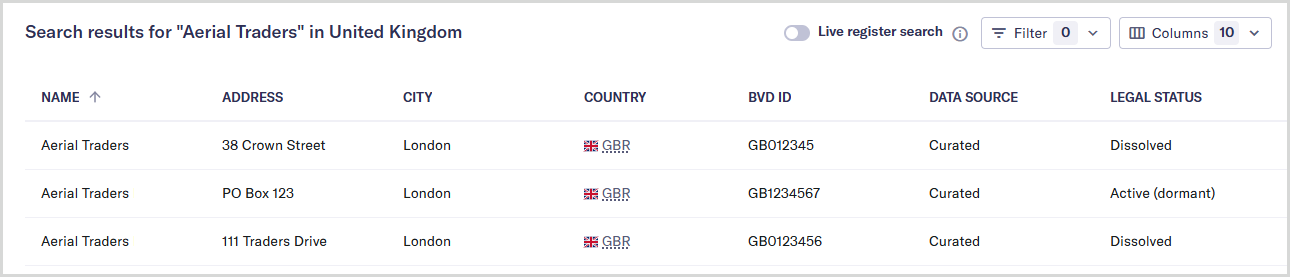
The table supports filtering, sorting, and column customization.
Sort and filter search results
Select a column header in the results table to change the sort order. Each column cycles through the following sorting states.
Closest match. This is the default sort order.
Ascending, for example, from A to Z or from 1 to 10.
Descending, for example, from Z to A or from 10 to 1.
Select to narrow search results by specific entity attributes.
Choose one or more filter values from the following categories: , , , , and .
Filter options update dynamically based on the current results, making it easier to continue refining your search.
To remove applied filters and restore your full search results, select .
Customize search table columns
Use the menu to control which columns appear in the results table and how they are ordered.
Select or deselect columns to include in the search result table.
Drag and drop column names to set the order in which columns display.
View entity details
You can open detailed information about an entity directly from search results. Select an entity name from either the search results drop‑down or the search results table to view its details.
From the search results drop‑down, entity details open in a full‑page view.
From the search results table, entity details open in a side panel, allowing you to review details without leaving the results list.
The information available depends on whether the entity is already in your portfolio.
Entities in your portfolio
When you select an entity that is already in your portfolio, you can:
View the entity's complete firmographics data and information on assessments.
Open notes, audit details, and data configuration for the entity.
Remove the entity from your portfolio, if needed.
Entities outside your portfolio
When you select an entity that is not currently in your portfolio, you can:
View the entity's firmographics, financials, and other available data.
Select to include the entity in your portfolio.